
IP Note is the Android client for ipnote.ir. It is built for network admins, developers and technical users. IP lookup, cloud notes and 25+ network tools live in one app. The Android build is free on Myket. The web and PWA versions run in your browser without install.
What Is IP Note and Who Is It For?
IP Note helps you inspect IP addresses quickly. You see approximate location, ISP, ASN and privacy flags. After sign-in, personal notes sync to the cloud per IP. Public network tools work without registration. Use the web at ipnote.ir or install Android from Myket.
If you work with DNS, SSL or WHOIS daily, this app saves time. Network support teams can note suspicious IPs in one tap. Web developers can verify DNS records before deploy. Security-minded users see VPN and proxy flags at a glance. One account syncs notes across mobile and web.
Unlike scattered single-purpose sites, IP Note shares one API and URL contract. A WHOIS deep link from the app opens the same way in a browser. That consistency matters for technical teams. The product is developed by Negin Tejarat Karavi and the NTK ecosystem.
IP Note App Promo Video
Watch the video below for a quick tour of IP Note. IP lookup, notes and DNS or WHOIS tools are shown in seconds. Open this link on Aparat for the full page. The clip gives a clear UI preview before you install.
Core Features: IP Lookup and Notes
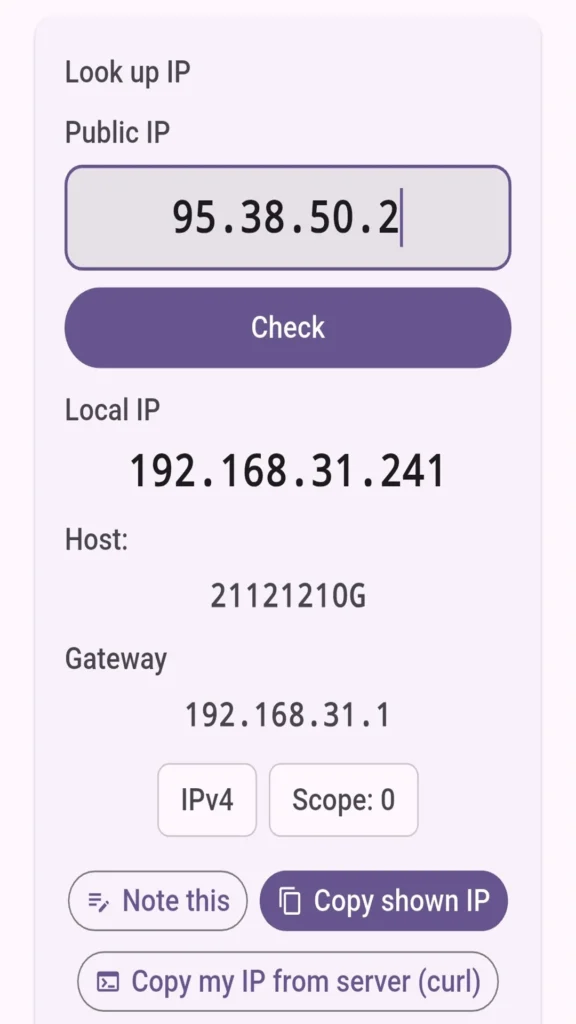
IP lookup is the heart of IP Note. Enter your public IP or any address you choose. You get map, PTR, geo data and carrier details. Privacy settings can mask IPs in the UI. Notes sync after sign-in with your ipnote.ir account.
Any lookup can become a note. Tap “Note this IP” to open the note form. Guests are sent to login first. After sign-in you return to the same IP. Network and device metadata can attach to each note.
IP lookup in IP Note supports IPv4 and IPv6. Input fields stay left-to-right for easy copy. Results include city, country, timezone and coordinates. ASN and ISP names help with routing issues. Tor, proxy and hosting flags appear under privacy.
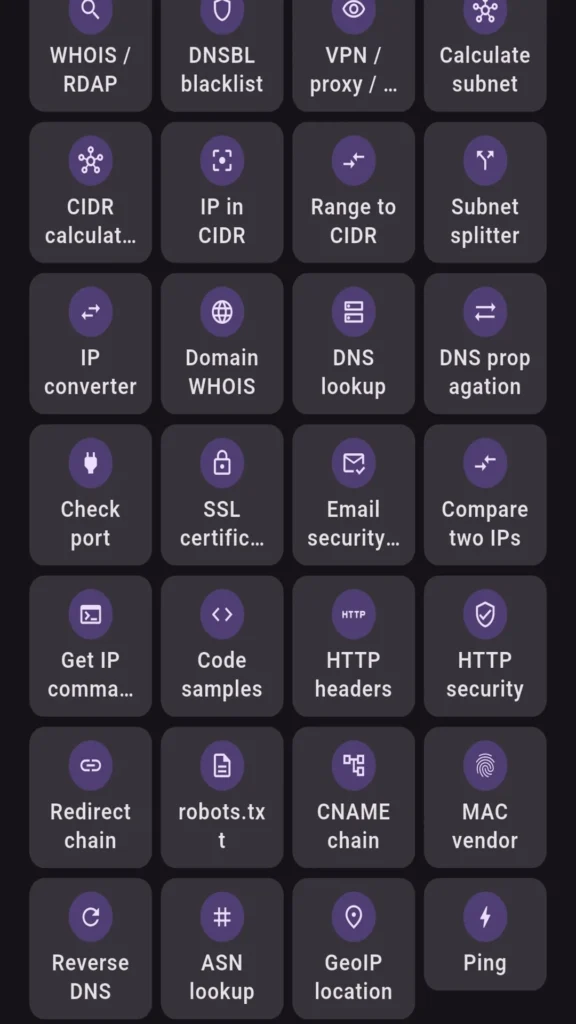
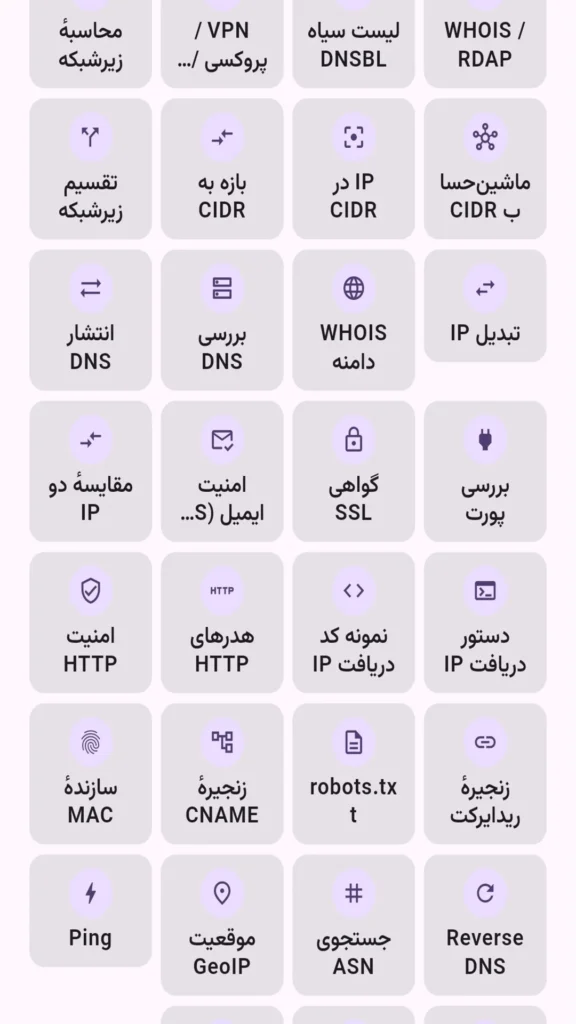
25+ Network Tools in One Hub
The IP Note tools hub covers DNS, SSL, WHOIS, port check, subnet and speed test. Each tool has its own page. Results produce shareable deep links. The web follows the same URL rules at ipnote.ir/tools. Animated guides appear on every tool screen.
DNS returns A, AAAA, MX and TXT records. SSL check shows expiry and certificate chain. WHOIS IP displays RDAP registry data. Port check tests TCP reachability on a host. Speed test measures download and ping.
Browse the full list from the Tools menu. Search inside the hub finds tools fast. After a successful run, the URL syncs to your inputs. Share the link with a colleague. They see the same result without retyping values.
Multilingual UI, Themes and UX
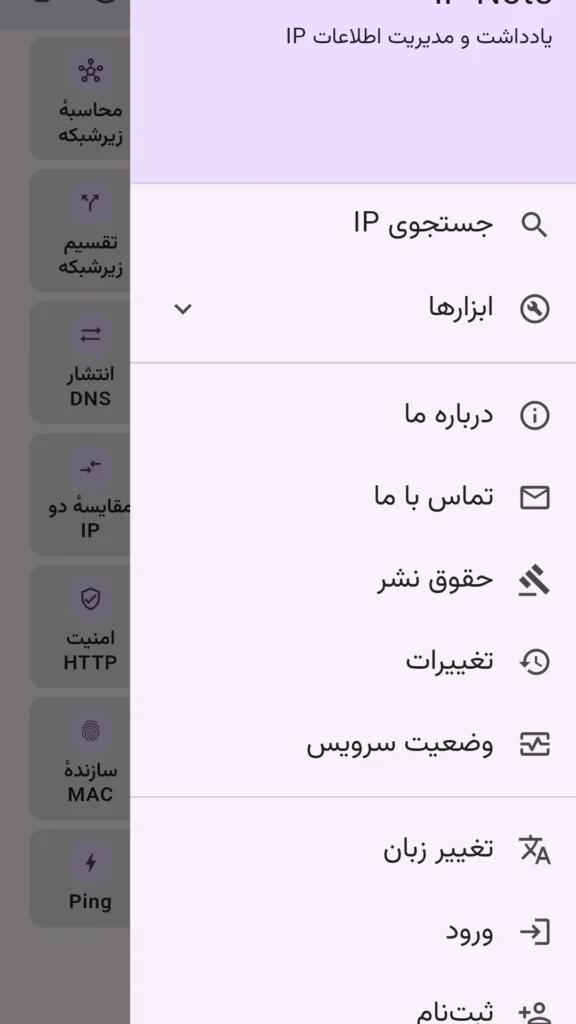
IP Note supports Persian, English, Arabic and French. Change language from device settings or the app menu. Light theme suits daytime use. Dark theme is tuned for night work. Colors use semantic tokens for readable contrast.
The interface is responsive on phones and tablets. Buttons stay within thumb reach on small screens. Tablets get more room for result tables. Motion respects reduced-motion preferences. These details add up to a professional experience.
Download IP Note on Myket
The Android build of IP Note is free. Install from Myket. Package ID: ca.karavi.ipnote.app by Negin Tejarat Karavi. Current store version is 0.1.17. Learn more on the about page.
The app runs without an account after install. IP lookup and most tools work as a guest. Cloud notes and dashboard require sign-in. Install size is about 30 MB. Updates arrive through Myket.
Privacy and the ipnote.ir Ecosystem
IP Note is part of the ipnote.ir platform. Privacy policy lives at ipnote.ir/copyright. User notes are stored securely after sign-in. Public IP is used only for geo lookup. Chrome extension and web PWA share the same API.
Privacy settings include an IP mask option. When enabled, part of the address is hidden in the UI. That helps with demos and screenshots. Account data covers email and your notes. Passwords are stored with modern security practices.
Step-by-Step Guide: How to Use IP Note
This section walks through IP Note from install to IP notes. Steps target the Android app. The web at ipnote.ir behaves the same way. Each step is short and easy to repeat.
Step 1 — Install from Myket
Open Myket on your phone. Search for “IP Note”. Or go directly to the app page on Myket. Tap Install. When finished, the IP Note icon appears on your home screen.
Step 2 — Your First IP Lookup
Launch the app. Home loads your public IP automatically. To check another address, type it in the top field. Tap the lookup button. Wait a few seconds for geo and ISP data. The map shows approximate location. Use Copy to save the IP to the clipboard.
Step 3 — Run the DNS Tool
Open Tools from the bottom menu or hub button. Select DNS. Enter a domain, for example ipnote.ir. Change record type if needed. Tap Run. Records list on the same screen. Errors show in plain language and can be copied.
Step 4 — Run WHOIS IP
In the tools hub, open WHOIS IP. Enter the target IP. Example: 8.8.8.8. Tap Submit. RDAP data shows range and organization. The page URL updates with your query. Share the link with a teammate. The same URL works in ipnote.ir/tools/whois-ip.
Step 5 — Sign Up and Sign In
Cloud notes require an account. Choose Login from the menu. Register if you are new. Enter a valid email and password. Enable Remember me if you prefer. After success you land on the dashboard. The same credentials work on ipnote.ir.
Step 6 — Add a Note to an IP
After lookup, tap Note. Guests are prompted to sign in first. The note form opens after login. Write your note text. An optional network snapshot can be saved. Tap Save. The note syncs to IP Notes and the server. View it from another phone or the web.
Step 7 — Change Theme and Language
Open Settings or the navigation drawer. Find the Appearance section. Pick light, dark or system theme. Choose fa, en, ar or fr. Changes apply immediately. IP and domain fields always stay LTR. That keeps technical values readable.
Step 8 — Privacy Settings
In Settings, open Privacy. Toggle IP mask on or off. When on, part of the IP is hidden in the UI. Useful for tutorials and screenshots. Legal details are at ipnote.ir/copyright. The UI refreshes right after you save.
Step 9 — Dashboard and Account
Open Dashboard from the menu. You see activity summary and recent notes. Account covers security, notifications and API keys. Browse search history when signed in. Reopen a past IP in one tap. These areas require login. Guests keep lookup and public tools only.
Step 10 — Web and PWA
No Android device? Use the web instead. Open ipnote.ir in your browser. Install the PWA to your home screen if offered. Tools at /tools use the same deep links as mobile. One account works everywhere. Notes sync across platforms.
Pro Tips for Power Users
Paste a tool deep link into a support ticket. Colleagues reproduce the exact test instantly. Run WHOIS and DNS before a domain cutover. Note staging server IPs separately from production. Create a personal API key under Account for scripts. Keep Myket updated for the latest tool fixes.
The Aparat video is a fast UI overview. This written guide is your detailed reference. Contact and product info live on about. Get the newest build from Myket.
Summary
For IP lookup, IP notes and network tools, IP Note is a strong choice. Try the web at ipnote.ir. Get Android from Myket. Watch the promo on Aparat. Follow the tutorial above step by step.
IP Note
Free download on Myket:





No comment